



Facebook Business Manager Structure
For those who don’t use or are unfamiliar with Facebook Business Manager, it can sometimes become a nightmare. I hear the “It’s too complicated” complaint almost every day. Since I believe I can support you on this matter, I’ve prepared a guide.
I hope it will serve as a guide both for brands to add agencies as partners or grant permissions and for beginners.
Let’s dive in.
Firstly, I need to briefly explain the structure to you. Let’s keep it simple, who/what uses this platform?
- Advertisers
- Business or Agency Owners
- For Business Assets (such as Facebook Pages, Instagram Accounts, Ad Accounts, Data Sets, etc.)
All of the above are managed from the business settings section.
Take a look at the diagram I prepared before delving into the details.
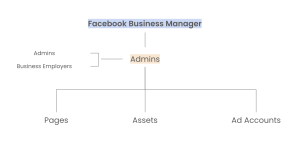
As you can see in the diagram, individuals (business owners or agency employees), followed by pages (such as Instagram, Facebook pages), and then advertising accounts.
We as users are at the top. When we want to grant permissions, we first enter the email of the person we want to add. Then we select where we want to add. For example, you can add a person on 1 Instagram account, 1 Facebook page, and 1 advertising account.
Tip: Permissions for Facebook Business Manager can be given to any email. Keep your Facebook profile open in one tab of your browser, click on the link in your email in another tab, follow the prompts, and easily access the panel.
Business Settings: Adding Users
Go to Facebook Business Manager’s business settings.
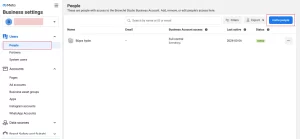
As shown in the diagram, “People” is here. You can add new people, set their permissions, or remove users by clicking on “add new” from the top right corner.
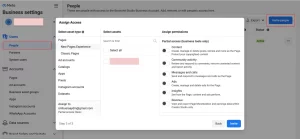
After entering the email of the person you want to authorize, you will see where you want to access. You select and give permission for pages, advertising accounts, Facebook Pixel code, if you have an application, and all other assets from here.
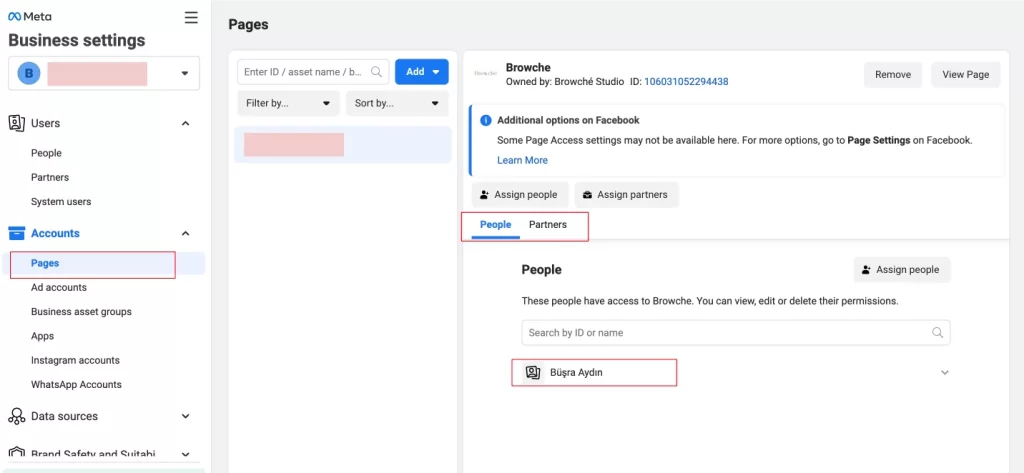
When you enter any asset, such as a page, you can see the “Users” and “Partners” who has access on that page.
Facebook Business Manager Campaign Structure
Under the “Advertising Accounts” in the first diagram, the business can have as many advertising accounts as it has permissions to open. Each advertising account has its own structure from top to bottom, namely; campaign level, ad group sets level, and ads level.
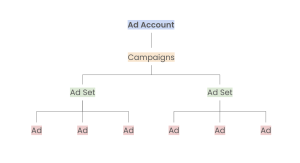
Each advertising account has its own dynamics. The campaign structure working in one advertising account may not work in another.
Therefore, it’s important to understand what’s going on at each level.
Campaign Level
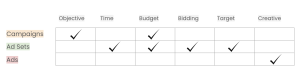
If I were to explain the campaign level briefly, I would say this; General Determinant.
When creating a campaign, the first decision you need to make is the “Objective.” We determine this objective based on the brand’s ultimate goals, which are usually 90% sales.
Facebook asks us, do you want to increase awareness? Do you want to drive traffic to your site? Do you want to make sales? Or do you want to increase engagement? The purpose of asking these questions is this;
You tell me your goal, and I’ll show your target audience according to your goal and encourage action.
Ad Group Level
At this level, we enter the target audience. (Placement, timing, etc. are also adjusted from here.)
We process the audiences we have segmented according to the strategy we previously created for the brand at this level.
Example audience segments:
- Interest Audience Pools: Based on age, interests, and other demographic data.
- Lookalike Audiences: Creates similar audiences to a defined source audience. (From 1% similarity to up to 10%)
- Custom Audiences: Audiences manually defined by yourself, such as users who have visited specific pages on the website or interacted with the Instagram account.
Ad Level
We make the input of what the ad will look like at this level. This section only contains the advertising creative elements.
Images, videos, where the ad will be directed, CTA (call to action) buttons, and where and how it will appear are all seen here.
We’ve covered the basic structure of Facebook Business Manager here. My aim was to tackle this complex structure from a point where everyone can understand it.
In addition, I’ve also answered the dilemma I often face in small to medium businesses, “How do I give you permissions?” 🙂 🙂
Thank you for reading this far, and I bid farewell for now until my next article!